



By Jeremy Park
If you’re like me then you have years and years worth of digital videos stored on your computer hard drive(s). Files upon files of family vacations, kids growing up, plus that hearty collection of Internet videos. Whether it’s to comment on my changing hair color or to see themselves as babies, my kids love to watch the videos I took of them over the years. Sometimes we just watch those videos on the computer using DivX Player, however my kids prefer when I cast those videos to our big screen TV in our family room. To enjoy my home movies on the TV, I simply use the DivX Media Server * to stream video to our Playstation. Don’t have a gaming console? No problem, DivX Media Server will work with nearly any smart TV that’s connected to the same WiFi network.
What is the DivX Media Server?
The DivX Media Server is part of our free DivX Player and it allows you to serve and send video files on your PC or Mac to a device on your home network (for example, your smart TV or gaming console). If you’re curious about how this works, the playback is done through DLNA. Remember that the device you’re streaming to must also be able to support playback of the format of your video file.
I use a PS4 to stream my content from my computer to my TV … which is more relaxing than getting yelled at by angry teammates during Call of Duty. Here’s how I use the DivX Media server with my PS4:
1. Make sure that the PC and PS4 are on the same WiFi network.
2. Install DivX Player (part of free DivX Software) and enable the DivX Media Server.
3. Add the folders containing your videos to the DivX Media Server
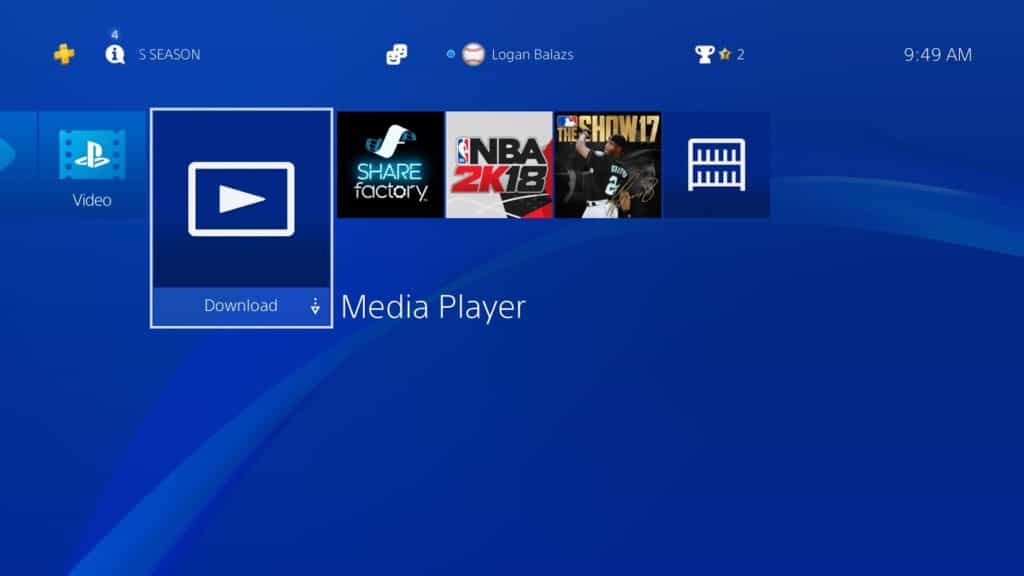
4. If needed, install Media Player on your PS4. This can be downloaded from the PlayStation store (see below)
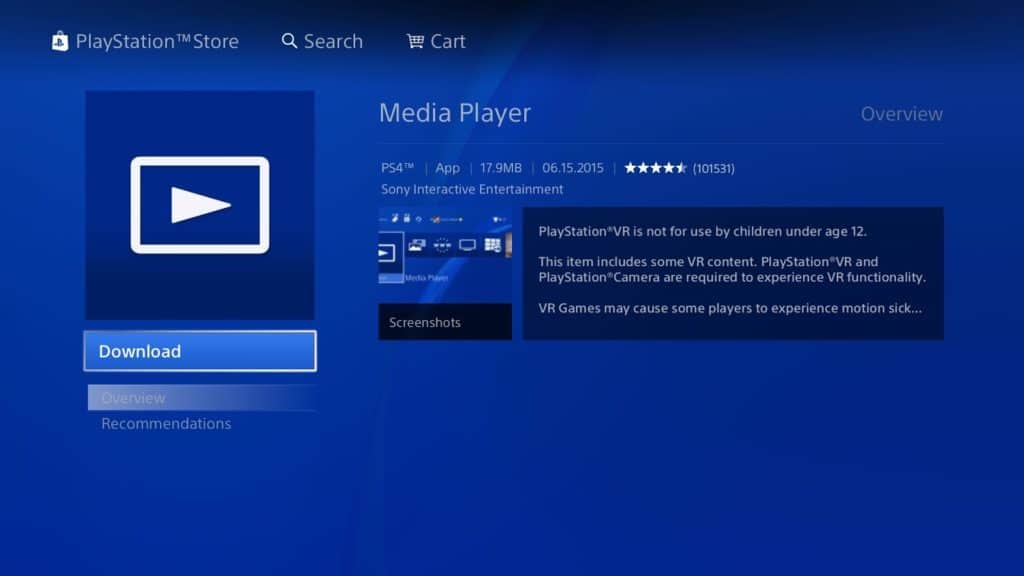
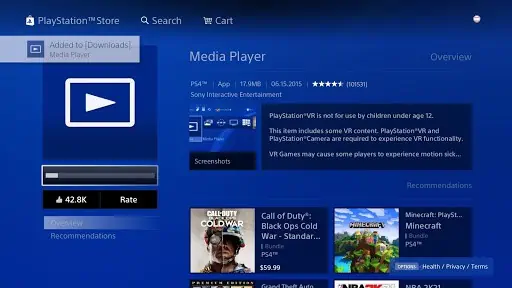
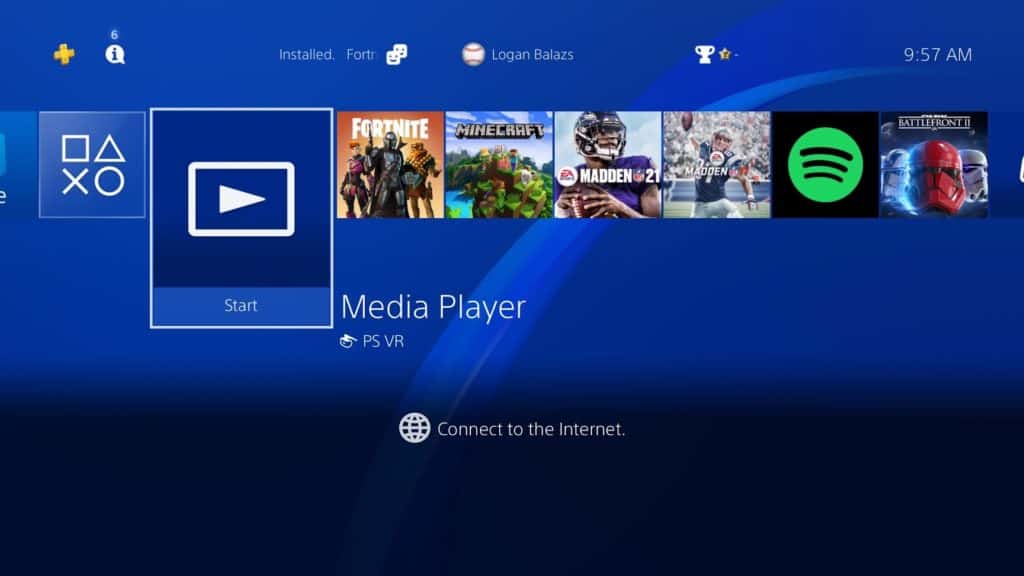
5. On the PS4 open the Media Player and select the DivX Media server from the list of available media servers.
6. Navigate to your videos and enjoy them on the big screen.


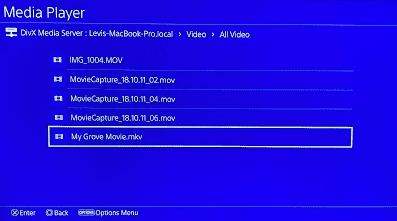
Keep in mind that whether you can play your videos will depend on the video formats supported by the device you are serving videos to. You can expand support to include .mkv files by also installing FFMPEG for transcoding.
For more information of the DivX Media Server check out our FAQs or take look at our previous video tutorials on using the DivX Media Server:
Main header image by press 👍 and ⭐ from Pixabay (with TV image modified)
* NOTE: With the September 2026 release of DivX Software version 11.16, we’ve removed the DivX Media Server from DivX Software. This allows us to focus our efforts on our core features and most popular tools. If you wish to continue using the DivX Media Server, our DivX Support team is happy to help you access a previous version of the software (11.15 and earlier). Additionally, there are many robust and popular third-party alternatives available today – such as Plex – that specialize in local media streaming.
We sincerely apologize for any inconvenience this may cause to users who used this feature. Thank you for your understanding as we work to make the core DivX experience better than ever.