Why Some Videos Won’t Play in Your Car (And How to Fix It)
You’ve queued up your favorite videos for the drive, only to be met with a blank screen or an error message. It’s a frustration that’s all too common, and one you shouldn’t have to accept.
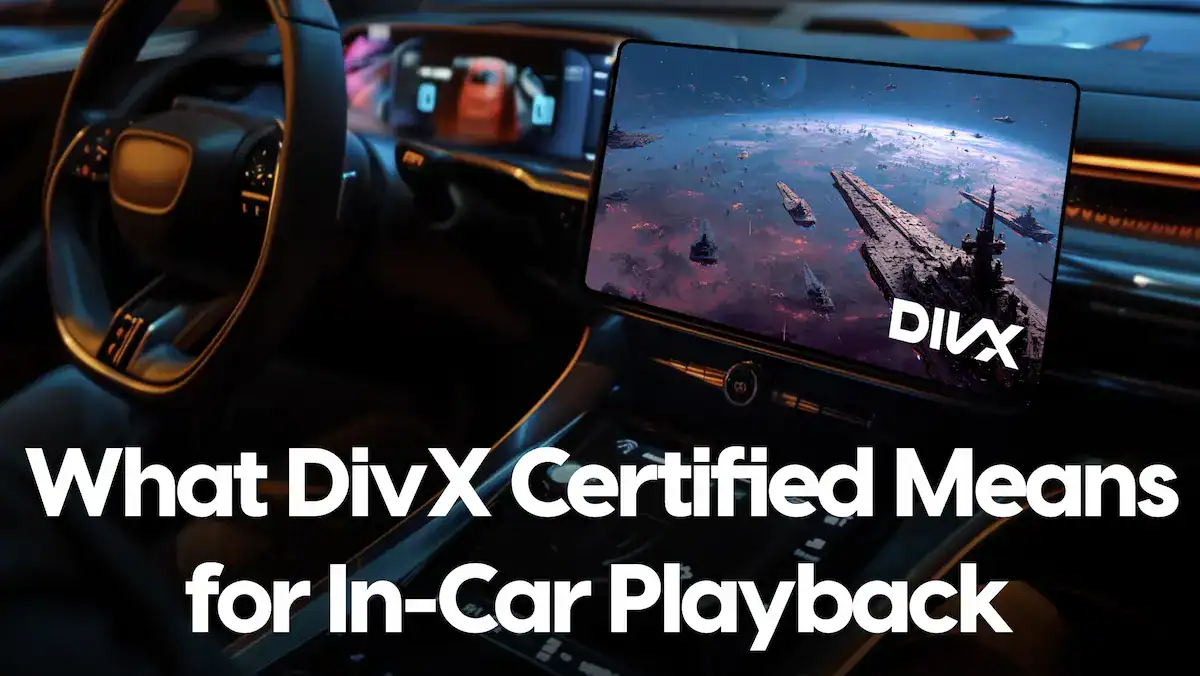
With over 25 years of innovation and over 2 billion certified playback devices worldwide, DivX is trusted by leading automotive brands to make video compatibility effortless.
Ready to stop troubleshooting and start enjoying your videos on the road? Discover how we deliver a seamless experience every trip.
The Real Reason Videos Won’t Play in Your Car Entertainment System
The Most Common Frustrations
You set up a playlist to keep the kids entertained, only to be met with an “unsupported file” message and a long drive ahead.
You convert a video into what seems like the correct format, try again, and hit another error.
Online searches lead to conflicting advice and technical jargon instead of a clear, simple answer.
Your car manual lists “compatible formats” but doesn’t explain the required codec, resolution, or USB settings, so you’re left guessing.
Even after trying every suggestion, playback still fails, leaving you unsure whether the issue is the file, the drive, or the vehicle itself.
For many drivers, it becomes a frustrating cycle of trial and error, with no reliable fix in sight.

Car Entertainment System Limitations
Car infotainment systems are built with strict safety rules and technical limits that can quietly block video playback:
Safety LockoutsMany vehicles disable video while driving to comply with safety regulations. Some systems won’t play anything unless the car is in Park with the parking brake engaged.
Format RestrictionsYour system may only support specific file types (such as MP4 or AVI) and only with certain codecs and resolutions. If the file doesn’t match those exact specifications, it won’t play.
USB & File Structure Issues
Even a compatible video can fail if:
- The USB drive is formatted incorrectly (e.g., NTFS instead of FAT32)
- Folder structures aren’t supported
- File names don’t meet system requirements
Codec & Bitrate Conflicts
A video that appears correct may still contain unsupported audio or video codecs, or a bitrate that’s too high for the system to handle.
Software & Firmware Quirks
Outdated firmware, system glitches, or DRM protections can also interfere with playback, leading to inconsistent results.
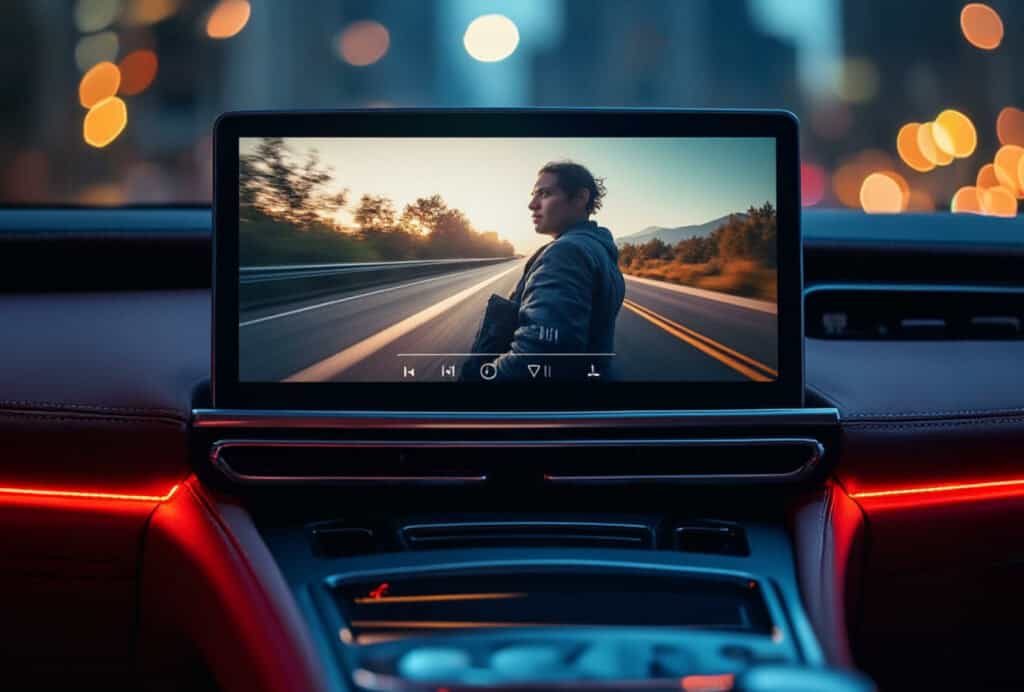
Demystifying Car Video Compatibility: What Formats Actually Work?
How to Find Your Car’s Supported Video Formats
The first step to smooth playback is knowing exactly what your car supports.
- Check your manual or the manufacturer’s website: Support varies by model and typically includes approved file types, codecs, resolution limits (often 720p or 1080p), and maximum file sizes.
- Common formats include DivX, MP4, and AVI, but support isn’t unlimited. Systems usually require specific video and audio codecs.
- MP4 is just a container. It can hold video and audio encoded in many different ways. If your system only supports MP4 with H.264 video and AAC audio, other variations won’t play.
- Container vs. Codec: Think of the container as a suitcase and the codec as what’s inside. Your car may accept the suitcase, but only if it’s packed correctly.
USB Drives, File Structure, and Other Hidden Roadblocks
Even with the correct video format, small file management issues can prevent your car from recognizing your media.
Proper USB Formatting
- Most systems require USB drives formatted as FAT32 (sometimes exFAT).
NTFS is rarely supported. - On your computer, right-click the drive, select Format, and choose the file system recommended in your car’s manual.
Folder Organization & File Names
Keep things simple:
- Store videos in the root directory or clearly labeled folders
- Avoid special characters and overly long file names
- Check if your system requires specific folder names like “Video” or “Movies”
Quick USB Troubleshooting
If files aren’t detected:
- Try a different USB drive
- Check for drive size limits
- Always safely eject the drive before removing it from your computer
Sometimes the issue isn’t the video, it’s how the files are stored.
The Codec Conundrum—Why Your File “Looks Right” But Still Won’t Play
What’s a Codec?
A codec is the technology used to compress and decompress digital video and audio. Even if your file is labeled “MP4,” the video and audio inside may be encoded in a way your car doesn’t support.
How Codec Mismatches Cause Playback Failures
Your car might accept MP4 files, but only with specific codecs, such as H.264 for video. If your file uses a newer codec like HEVC (H.265), it may fail instantly, even though the format appears correct.
The same applies to audio. Unsupported codecs like AC3 or DTS can result in errors or silent playback.
A Simpler Solution
Instead of guessing which codec combination will work, use a converter that handles it for you. DivX takes care of the technical details behind the scenes, so you only have to worry about one thing, pressing play.
Convert Your Videos with DivX Software
The DivX Difference: How We Make In-Car Video Playback Effortless
DivX is trusted by leading automakers and certified in over 2 billion devices, including most modern car video players. For over two decades, our technology has powered seamless in-car video playback around the world.
If you’re tired of dealing with video errors and confusing formats, DivX is built to make your media just work, so you can focus on the drive.
One Simple Solution: DivX Converter & Software
Preparing a video for in-car playback should not require technical guesswork. With DivX Converter, you can create compatible files in just a few straightforward steps.
How to Convert a Video for Car Playback
1. Install the Software
Download and open DivX Converter on your computer.
2. Add Your Video File
Drag and drop the file into the application window.
3. Select a Compatible Profile
Choose a preset such as DivX or MP4 (H.264), formats commonly supported by many vehicle systems.
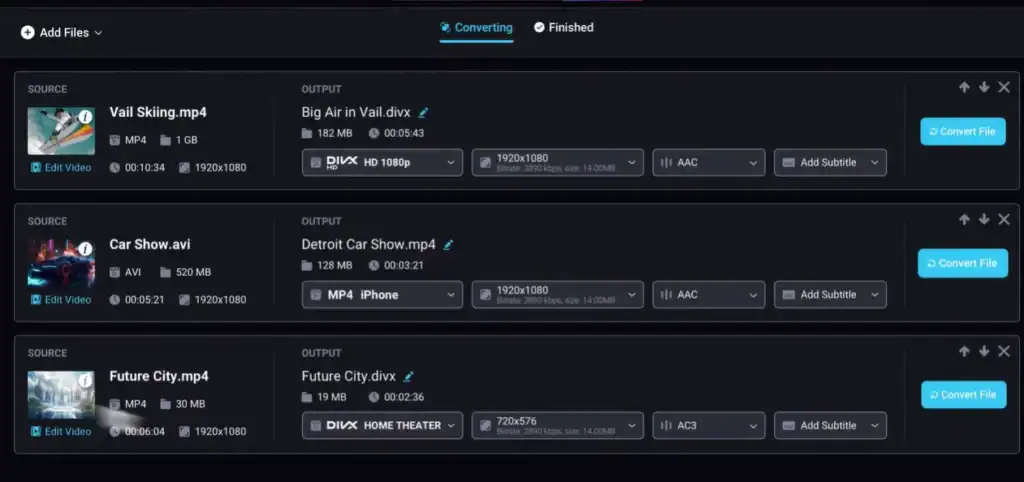
4. Adjust Resolution if Necessary
If your vehicle has a resolution limit (for example, 720p), select the appropriate setting.
5. Start the Conversion
Click Convert.
The software will process the file using the selected settings.
Transfer to a USB Drive
Save the converted file to a properly formatted USB drive (typically FAT32 or exFAT).
Once complete, your video is ready for playback in your vehicle’s entertainment system.
For more details on preparing your videos for the road and maximizing compatibility,
Troubleshooting Guide: What to Do When Your Video Still Won’t Play
If your video still will not play, review this quick checklist:
- Confirm the vehicle is in Park and the parking brake is fully engaged.
- Restart the infotainment system or power the vehicle off and on.
- Try a different USB drive formatted to FAT32 or exFAT.
- Ensure the file is not protected by DRM (Digital Rights Management).
If issues persist, simplify the process by converting your file with DivX Converter to ensure compatibility, so you can return to a smooth, uninterrupted drive.
Frequently Asked Questions (FAQ)
What video formats do most car systems support?
Most car entertainment systems support DivX, MP4 (with H.264 video), and AVI formats. Always check your owner’s manual for specific details on supported codecs, resolutions, and file sizes.
How do I convert a video to play in my car?
Use DivX Converter. Just add your video, select a car-compatible format (like DivX or MP4), and click convert. Then transfer the file to a properly formatted USB drive.
Why won’t my USB drive show up in the car?
Make sure your USB drive is formatted as FAT32 or exFAT (not NTFS), and that the file size and folder structure match your car’s requirements. Try a different USB drive if issues persist.
Is it legal to watch videos in the car?
Laws vary by location, but video playback is typically only allowed for passengers or when the car is parked. For safety, most systems block video while driving.
How do I get help if I’m still having trouble?
Visit DivX Support for troubleshooting tips, or reach out to our team, we’re here to help you enjoy your media, hassle-free.
Start Watching with Confidence on the Road
Whether you’re gearing up for a long road trip or just want smooth daily use, proper encoding with DivX ensures fewer compatibility problems and seamless playback every time.
DivX provides the tools and documentation you need to improve compatibility and simplify video playback across all your devices. Get started today and make every drive more enjoyable.
Additional Resources:
- In-Car Playback Solutions: Learn more about DivX’s in-car playback technology and support.
- Detailed Guides: Take a deeper dive into DivX capabilities with some additional resources.
- Support: Direct assistance if you’re still experiencing playback issues