

How to Convert MKV to MP4 Without Losing Quality
You’ve finally downloaded that high-definition video file or backed up your favorite disc, only to run into a familiar digital brick wall. You transfer the file to your tablet for a flight, or plug a USB drive into your car’s entertainment system, and you’re met with a blank screen or an “Unsupported File Format” error.
The culprit? It’s likely an MKV file.
While the Matroska (MKV) container is highly praised by media curators for its ability to hold unlimited audio tracks and subtitles, it isn’t universally loved by mobile devices, smart TVs, or gaming consoles. For maximum compatibility, MP4 is your best option.
But how do you handle converting your video without ruining that pristine, high-definition video? If you are looking for an MKV to MP4 converter that gets the job done without turning your video into a blocky, pixelated mess, you’re in the right place. Here is exactly how to convert MKV to MP4 free, safely, and without a discernible loss in quality.
If your original MKV file uses a modern codec like H.264 or HEVC (H.265), you don’t need to completely re-compress the video. Re-compressing (or re-encoding) degrades the quality. Instead, the ideal software simply changes the container from MKV to MP4 while keeping the original video stream completely intact. You can think of it like moving your clothes from a duffel bag to a hard-shell suitcase—the clothes inside don’t change at all.
Step-by-Step: How to Convert MKV to MP4 with DivX
At DivX, we believe you shouldn’t need a degree in video engineering to watch your favorite films. For over 25 years, our software has been trusted by millions to deliver seamless video experiences.
In order to perform a lossless conversion, a few things need to be properly set. The Source and Destination need to have the same Resolution, Video Codec, and Audio Codec.
If these three conditions are met, then the DivX Converter can simply “repackage” the video and audio into a different container without any video or audio quality loss. Also, as a side benefit, the conversion should be fast as there is no need to re-encode your video.
Here is how to use the free DivX Converter to safely optimize your files for any device.
Step 1: Download and Install DivX Software
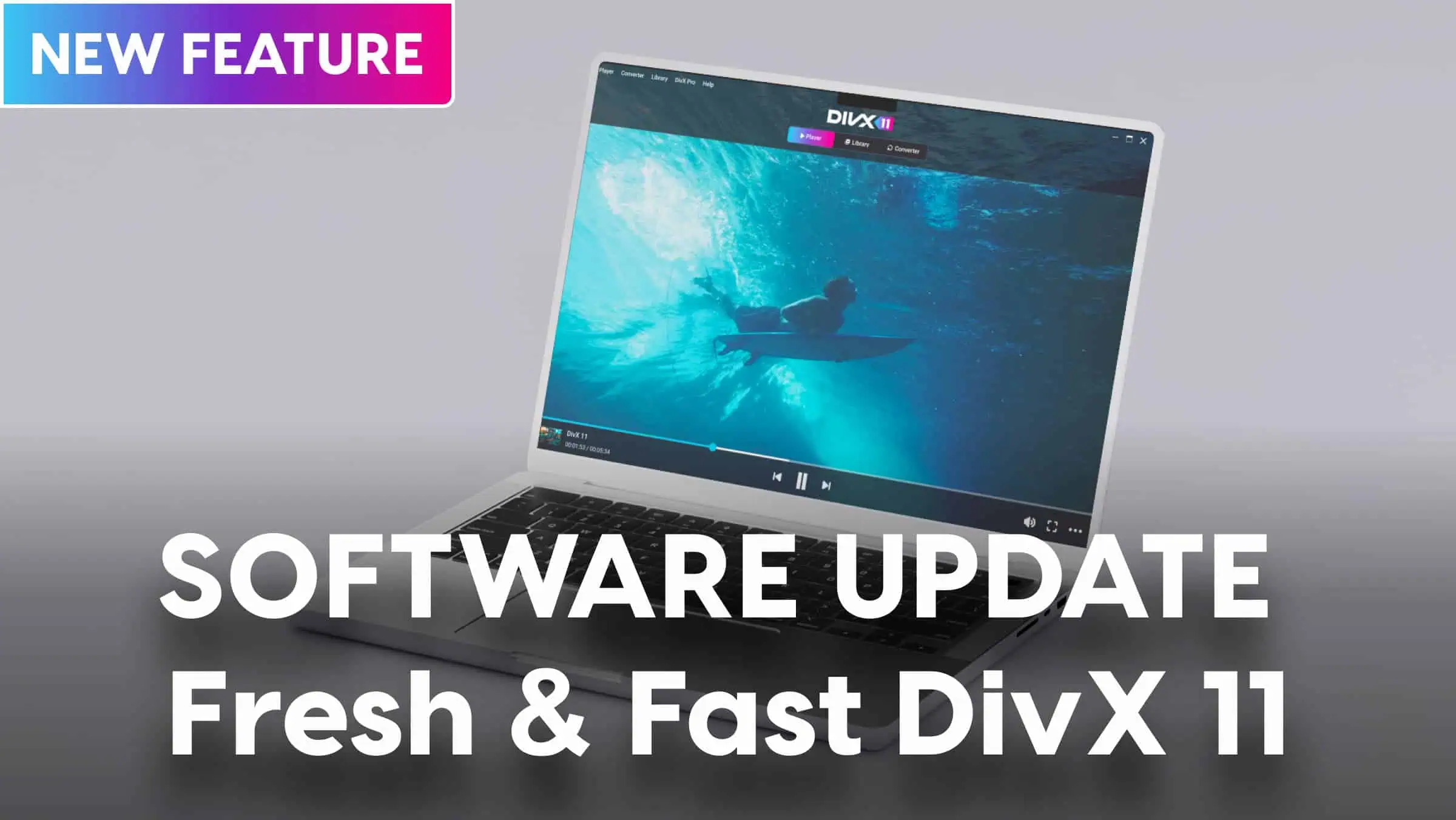
First, download the free version of DivX Software. Unlike sketchy online converters that flood your browser with ads or put your privacy at risk, DivX is a secure, desktop-based ecosystem built on technical excellence.
Step 2: Drag and Drop Your MKV File
Open the application and select the Converter tab. Simply grab your MKV file from your computer and drop it directly into the conversion window.
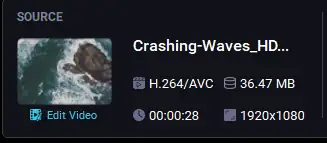
Step 3: Check Sources
Review the Source Panel (see screenshot below) and note the codec being used (e.g. H.264, DivX, H.265, etc.) and note the resolution (1920×1080, 3840×1600, etc.).
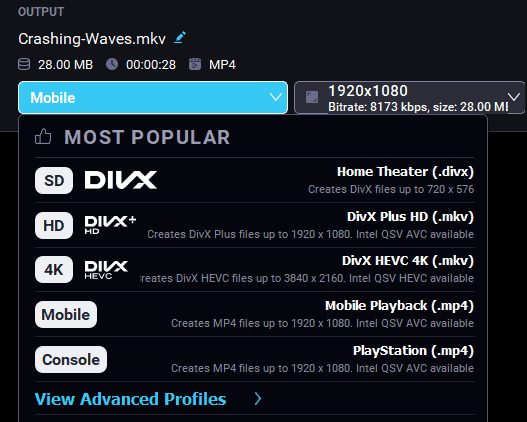
Step 4: Choose Profile
Select a profile that matches or contains your Codec and resolution from Step 3 (most likely the “Mobile” profile).
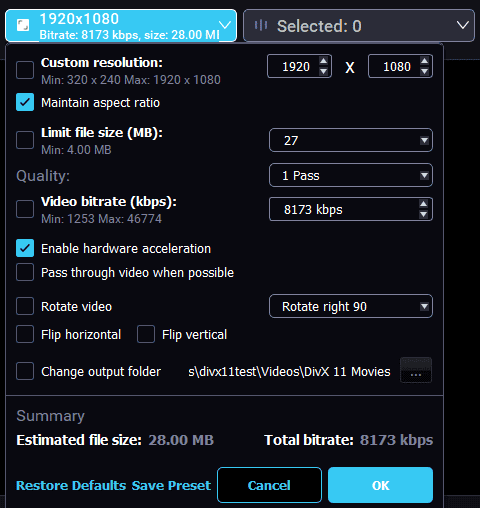
Step 5: Video Codec Settings
Open the Video Codec settings and make sure that “Custom Resolution”, “Limit File Size”, “Video Bitrate” are unchecked and that “Pass through video when possible” is checked.
Step 6: Audio Codec Settings
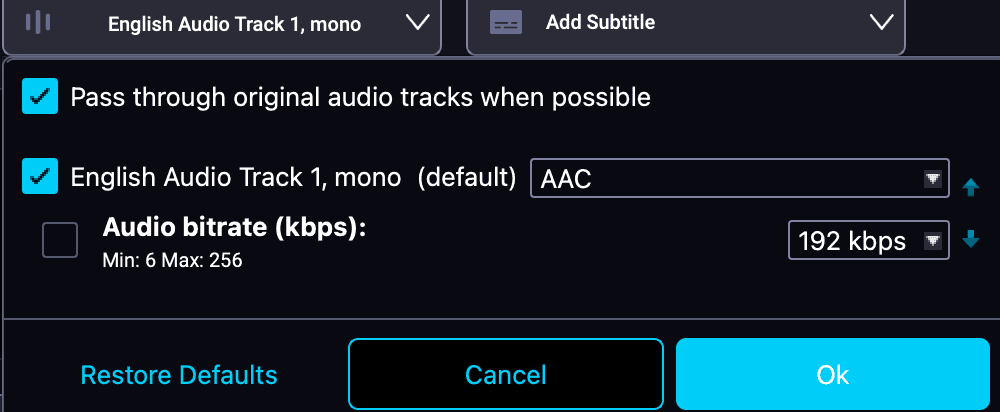
Open the Audio Codec settings and make sure that “Pass through original audio when possible” and at least one audio track is selected.
Step 7: Click “Convert All”
Finally, hit the blue “Convert All” button. The conversion should go quickly as there’s no need for additional encoding of your file. You should now have an MP4 file to play just about anywhere!
Pro Tips for Pristine Video Conversions
To ensure you get the absolute best results every single time you convert MKV to MP4, keep these best practices in mind:
- Start With a High-Quality Source: Conversion software cannot magically add pixels or detail that weren’t there to begin with. Always use the cleanest original file possible.
- Match the Original Resolution: If your source video is 1080p, convert it to 1080p. Avoid “upscaling” a video to 4K during conversion, as this unnecessarily inflates the file size without actually improving how the video looks.
- Watch Your Bitrate: If you do choose to re-encode a video to reduce file size, ensure your bitrate remains moderate (typically under 10 Mbps for standard HD video) so your action scenes don’t stutter or look blurry.
Want ultimate control? While our free software covers all the everyday basics, DivX Pro unlocks advanced encoding controls. Power users can use custom bitrate throttling, fine-tune aspect ratios, use basic video editing functionality and more.
Ready to Fix Your Media Library?
You don’t have to tolerate unplayable files or compromise on visual clarity. By picking a dedicated, time-tested tool, you can bridge the gap between formatting restrictions and your viewing experience.
Learn more about the engineering behind the MKV video container on our dedicated technology page, or skip the wait entirely. Download free DivX 11 Software today and convert your videos with absolute confidence.